
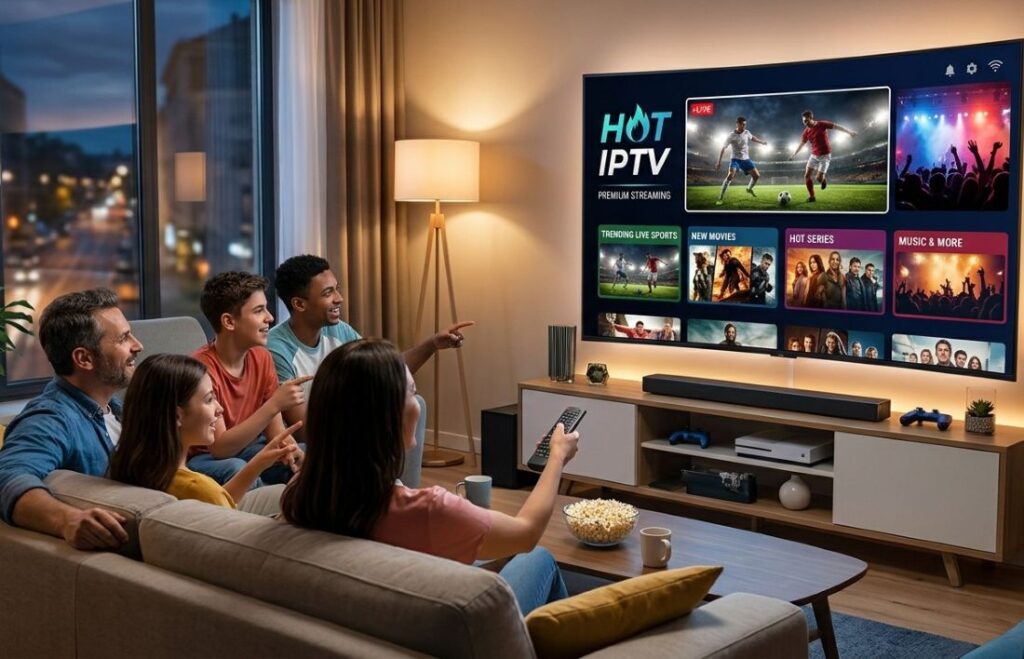
Hot IPTV Player: Complete Overview, Setup & Optimization Guide (2026)
Digital video distribution over high-speed broadband has completely transformed how households access live television broadcasts, global sports events, and on-demand movies. As viewers increasingly transition away from legacy cable systems, choosing a reliable media stream engine is key to enjoying a seamless entertainment experience. Among the dedicated applications available on modern Smart TVs and streaming boxes, hot iptv has emerged as a popular choice for managing custom playlist configurations. In this comprehensive guide, we explore how this player functions, review its primary capabilities, walk through step-by-step setup instructions for playlist activation, and share best practices to eliminate playback buffering.
Table of Contents
- What Is Hot IPTV?
- Core Features and Functionality
- Supported Devices and Operating Systems
- Player Feature Comparison
- Step-by-Step Activation and Setup Guide
- Optimizing Playback and Reducing Buffering
- Network Security and VPN Compatibility
- Frequently Asked Questions
- Conclusion
What Is Hot IPTV?
It is essential to clarify that hot iptv is strictly a client-side media player application and video decoder interface. The app does not supply, host, or sell live TV channels, streams, M3U playlists, or pre-configured media subscriptions. Instead, it functions as an engine that parses external playlist sources—such as M3U HTTP links or Xtream Codes API credentials provided by authorized services. Once linked, hot iptv organizes channels by genre, fetches Electronic Program Guide (EPG) metadata, and delivers smooth stream playback.
Core Features and Functionality
Designed primarily for big-screen television environments, hot iptv includes several advanced options to elevate home entertainment:
- Electronic Program Guide (EPG) Integration: Automatically syncs broadcast schedules, show timelines, and channel logos for active streams.
- Multiple Playlist Management: Allows users to load and manage multiple M3U playlist links or portal credentials within a single application interface.
- Multi-Audio and Subtitle Support: Lets viewers toggle between embedded audio tracks and external closed-caption subtitles easily.
- Favorites Grouping: Enables quick bookmarking of frequently watched live channels and VOD titles for fast remote access.
- Parental Controls: Secure sensitive channel categories or adult content behind a customized PIN code.
Supported Devices and Operating Systems
One of the primary advantages of utilizing hot iptv is its cross-platform availability across popular Smart TV application stores:
- Samsung Smart TVs: Native application support via the Samsung Tizen App Store.
- LG Smart TVs: Accessible directly within LG webOS Content Store.
- Android TV & Google TV: Compatible with Nvidia Shield, Chromecast with Google TV, and Android Smart TVs.
- Amazon Fire OS: Installable on Amazon Fire TV Stick, Fire TV Max, and Fire TV Cube devices.
Player Feature Comparison
The table below highlights common operational attributes when running hot iptv on different platforms:
| Feature | Samsung (Tizen) / LG (webOS) | Android TV / Fire OS |
|---|---|---|
| Playlist Entry | MAC Address activation portal | MAC Portal / Direct App Input |
| EPG Support | XMLTV / Server Auto-Sync | XMLTV / Multi-EPG Sources |
| Video Decoding | Native TV Hardware Acceleration | HW, HW+, and SW Decoder Options |
| Remote Control Optimization | Full TV Remote Integration | D-Pad & Bluetooth Remote Ready |
Step-by-Step Activation and Setup Guide
Setting up your playlist inside hot iptv takes only a few simple steps using your device’s MAC address:
- Download and install the official hot iptv application from your Smart TV or device app store.
- Launch the app and make note of the unique **MAC Address** displayed on your TV screen.
- Open a web browser on your smartphone or computer and navigate to the official hot iptv upload portal.
- Enter your device’s **MAC Address** into the designated field.
- Input your M3U playlist URL or Xtream API credentials provided by your legal streaming service.
- Click **Save** or **Upload**, then restart the hot iptv app on your television to load the channels and EPG data.
Optimizing Playback and Reducing Buffering
To ensure a buffer-free viewing experience while using hot iptv, apply these technical adjustments to your home setup:
- Use Ethernet Instead of Wi-Fi: Connect your Smart TV or streaming box directly to your router with an Ethernet cable to avoid wireless interference.
- Ensure Adequate Internet Bandwidth: Maintain a minimum connection speed of 15–20 Mbps for HD channels and 30–50 Mbps for smooth 4K Ultra HD streams.
- Adjust Network Buffer Size: Increase the stream buffer duration in the application settings menu to smooth out minor network fluctuations.
- Clear Application Cache: Periodically clear the software cache in your television’s app management settings to free up system RAM.
Network Security and VPN Compatibility
Internet Service Providers (ISPs) often inspect high-volume video traffic and may apply automated bandwidth throttling during peak viewing hours or live sporting events. Using a Virtual Private Network (VPN) on your network encrypts incoming data packets, preventing ISP throttling and protecting connection stability while streaming via hot iptv.
Frequently Asked Questions
Does Hot IPTV include live TV channels?
No. The hot iptv app is strictly a media player tool. You must upload your own M3U playlist URL or account credentials from a legitimate service.
How do I activate Hot IPTV on my Smart TV?
You activate the app by linking your TV’s MAC address to your playlist link through the official web activation portal.
What should I do if channels fail to load in Hot IPTV?
Check your internet connection, verify that your playlist URL is active, or reload the playlist configuration on the online upload portal.
Conclusion
Utilizing hot iptv provides an efficient and organized way to manage digital TV channels and on-demand media across modern Smart TVs. By configuring accurate EPG metadata, ensuring a hardwired internet connection, and maintaining a stable network setup, you can enjoy a crisp, reliable home viewing experience on all your screens.