
TiviMate IPTV Player: Complete Configuration, Features & Premium Setup Guide (2026)
The evolution of home television streaming has shifted dramatically toward custom, software-driven media management. For users looking to transform raw playlist feeds into a polished, cable-like television guide, the tivimate iptv player stands out as the absolute benchmark on Android TV and Fire OS platforms. Unlike basic media applications, TiviMate is engineered specifically for big-screen television navigation using standard TV remotes. In this comprehensive guide, we explore how TiviMate operates, examine its core interface capabilities, highlight key differences between Free and Premium versions, detail step-by-step setup procedures for M3U and Xtream Codes API, and outline best practices to eliminate buffering.
Table of Contents
- What Is TiviMate IPTV Player?
- Why TiviMate Is the Top Choice for Big Screens
- TiviMate Free vs. TiviMate Premium Feature Breakdown
- Supported Devices & Operating Systems
- Step-by-Step Playlist Configuration Guide
- Setting Up and Customizing the Electronic Program Guide (EPG)
- Advanced Options: Multi-View, Recording & Catch-Up
- Preventing Buffering and Fine-Tuning Performance
- Frequently Asked Questions
- Conclusion
What Is TiviMate IPTV Player?
It is essential to understand that the tivimate iptv player is strictly a client-side video decoding application and user interface. The software itself contains no built-in channels, live TV streams, video-on-demand libraries, or pre-installed subscriptions. Instead, TiviMate functions as an advanced streaming shell that imports external media playlists provided by legitimate service providers—such as M3U playlist URLs or Xtream Codes API credentials. Once connected, the application parses channel metadata, constructs an interactive EPG TV guide grid, and renders streams at high frame rates.
Why TiviMate Is the Top Choice for Big Screens
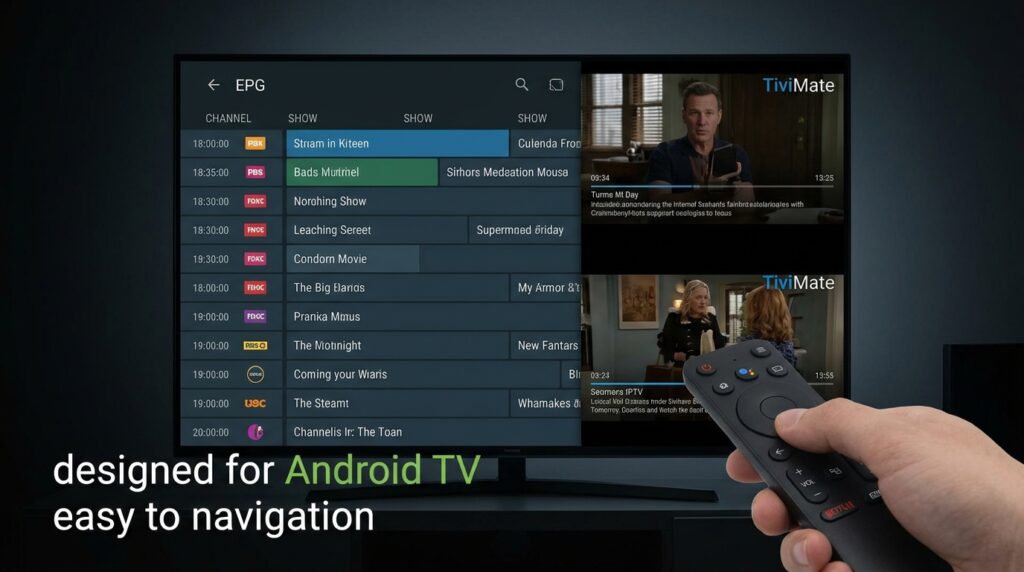
While many media players are adapted from touch-screen mobile interfaces, the tivimate iptv player was built from the ground up specifically for remote-control navigation on TV displays. Its modern dark interface, ultra-fast channel zapping speeds, and granular menu customization options provide a viewing environment that rivals high-end satellite or cable set-top boxes.
TiviMate Free vs. TiviMate Premium Feature Breakdown
The standard version of the tivimate iptv player is free to install and offers basic single-playlist playback. However, unlocking TiviMate Premium releases the full capabilities of the software:
| Capability | Free Version | Premium Version |
|---|---|---|
| Playlist Limit | Single active playlist only | Multiple active playlists supported |
| EPG Support | Basic primary EPG source | Multiple EPG sources & manual XMLTV assignment |
| Interface Customization | Standard layout options | Custom channel groups, reordering, and hiding channels |
| Playback Features | Standard live TV controls | Multi-view split-screen, Picture-in-Picture (PiP), Catch-up |
| Recording Engine | Not supported | Scheduled & background recording to USB or LAN storage |
| Favorites & Management | Basic favorite marking | Advanced multi-category favorites & custom search filters |
Supported Devices & Operating Systems
Because the tivimate iptv player relies on Android’s native leanback engine, it is optimized for television hardware ecosystems:
- Android TV & Google TV: Nvidia Shield TV, Chromecast with Google TV, Xiaomi Mi Box, Sony Smart TVs, Philips Smart TVs.
- Amazon Fire OS Devices: Amazon Fire TV Stick 4K Max, Fire TV Cube, Fire TV Edition Smart TVs (installed via sideloading).
- Formuler & Android Set-Top Boxes: Compatible with open-Android TV media receivers.
Note: TiviMate is not natively available for Samsung Tizen, LG webOS, iOS, or touch-screen smartphones. For non-Android smart TVs, portal-based players are commonly utilized.
Step-by-Step Playlist Configuration Guide
Configuring your playlist inside the tivimate iptv player takes only a few minutes. Follow these standard steps:
- Open the official application store on your Android TV or use the Downloader app on Firestick to install the tivimate iptv player.
- Launch the app and select Add Playlist from the primary splash screen.
- Choose your provider’s preferred connection method: Xtream Codes (recommended) or M3U Playlist.
- If using Xtream Codes, input the Server URL, Username, and Password provided in your subscription account email.
- If using an M3U URL, paste or type the HTTP link into the designated entry field carefully.
- Give your playlist a recognizable name (e.g., “Home Entertainment”) and click Next to import channels and VOD lists.
- Allow a moment for the channel groups, video profiles, and guide metadata to parse into the application.
Setting Up and Customizing the Electronic Program Guide (EPG)
An accurate program guide turns raw stream lists into an organized channel guide. When using Xtream Codes inside the tivimate iptv player, the EPG usually links automatically. If program guide data is missing, perform the following steps:
- Navigate to Settings > EPG > EPG Sources inside the application menu.
- Select Add Source and enter the XMLTV EPG URL provided by your service operator.
- Assign the EPG source to your active playlist and select Update EPG to force a manual synchronization.
- Set the EPG update interval to 24 hours and toggle on Update on app start for seamless guide refreshing.
Advanced Options: Multi-View, Recording & Catch-Up
For power users running the Premium edition of the tivimate iptv player, advanced media control tools significantly enhance the viewing experience:
- Multi-Screen Viewing: Open up to 4 or 9 live channels simultaneously on a split-screen display—ideal for tracking multiple live sports broadcasts during weekend games.
- Background Recording: Connect a FAT32-formatted USB drive or local Network Attached Storage (NAS) to schedule recordings of live shows directly through the EPG guide.
- Catch-Up / Replay TV: Rewind broadcasts up to 7 days retroactively on channels marked with clock icons (provided your streaming service supports server-side catch-up data).
Preventing Buffering and Fine-Tuning Performance
If you experience buffering, video stuttering, or audio desync inside your tivimate iptv player, apply these proven performance tweaks:
1. Use a Hardwired Ethernet Connection
While modern Wi-Fi is convenient, signal interference can drop incoming bandwidth packets. A physical Ethernet cable plugged into your Android TV or media box ensures constant data throughput.
2. Adjust Decoder Hardware Acceleration
Navigate to Settings > Playback inside the app. Toggle between Hardware (HW) and Software (SW) decoders for Video and Audio. Hardware decoding utilizes your device GPU for smoother frame rates, while Software decoding offers compatibility across tricky audio codecs.
3. Increase Buffer Size
Under Settings > Playback > Buffer Size, increase the stream buffer from “None” to Medium or Large. This allows TiviMate to store a few seconds of video data in memory, absorbing minor network dips without interrupting playback.
Frequently Asked Questions
Does TiviMate IPTV player provide channels?
No. TiviMate is exclusively a software player. You must supply your own M3U playlist URL or Xtream Codes API login from an authorized content provider.
How do I unlock TiviMate Premium on Firestick?
To activate Premium on devices without the native Google Play Store (like Amazon Fire TV Sticks), install the TiviMate Companion app on an Android mobile device or PC emulator, create your account, purchase a license, and log into those credentials inside the TiviMate settings on your Firestick.
Can I use TiviMate on my LG or Samsung Smart TV?
No. TiviMate is built specifically for Android TV and Fire OS operating systems. It cannot be installed natively on Samsung Tizen or LG webOS TVs.
Conclusion
The tivimate iptv player remains the undisputed leader among Android TV media applications. By providing an authentic television guide layout, robust multi-playlist support, flexible EPG mapping, and powerful playback tools like multi-view, TiviMate delivers an uncompromised, high-definition viewing experience across all your home entertainment screens.